Managing Multiple Email Accounts on One Device: Easy Guide for North York Seniors
Many seniors find themselves using more than one email account. Perhaps you have a personal email for staying in touch with family and another for banking notifications or shopping confirmations. Managing separate accounts can feel like juggling, but it does not have to be difficult.
The good news is that you can check all your emails from a single phone or tablet. Whether you use Gmail, Outlook, or another service, there are simple ways to bring everything together. This guide will walk you through the process step by step.

Managing multiple email accounts is easier than you think with the right guidance.
Why Keep Multiple Email Accounts?
There are good reasons to maintain separate email accounts. One account might be for family photos and personal messages, while another is strictly for bill reminders and bank statements. Keeping these separate makes it easier to find important messages and reduces the risk of missing something critical among everyday correspondence.
Some seniors also have an email address they have used for years with friends and a newer one for newer contacts. Rather than checking two different phones or computers, you can view everything in one place.
Setting Up Multiple Gmail Accounts on an Android Phone
If you have an Android phone and use Gmail, adding another account is straightforward:
- Open the Gmail app: Tap the Gmail icon on your phone home screen.
- Go to settings: Tap the three lines in the top left corner to open the menu, then scroll down and tap "Settings."
- Add another account: Tap "Add account" and select "Google."
- Sign in: Enter your second Gmail address and password, then follow the prompts to complete setup.
- Switch between accounts: Tap the three lines again and tap the downward arrow next to your account name to see all your accounts. Tap whichever one you want to use.
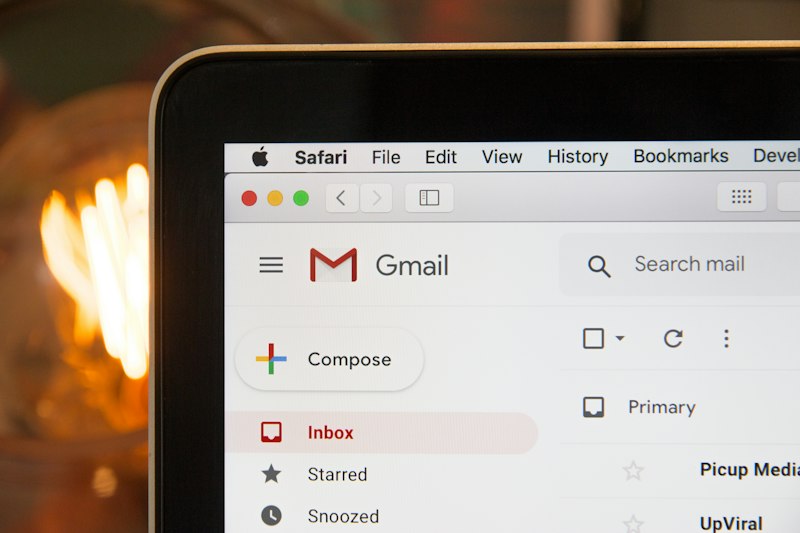
Gmail makes it simple to add and switch between multiple accounts.
Setting Up Multiple Accounts on an iPhone
For iPhone users, the process works through the Settings app:
- Open Settings: Tap the grey gear icon on your home screen.
- Find Mail: Scroll down and tap "Mail," then tap "Accounts."
- Add a new account: Tap "Add Account" and choose your email provider (Gmail, Outlook, Yahoo, etc.).
- Enter your details: Type in your email address and password for the second account.
- Choose what to sync: Decide if you want to sync Mail, Contacts, Calendars, and Notes. Tap "Save" when finished.
Once set up, you can switch between accounts within any mail app by tapping the inbox name and selecting a different account.
Using Microsoft Outlook for Multiple Accounts
Outlook is popular because it works well with many different email providers, including Gmail, Yahoo, and business email. Here is how to add accounts:
- Download Outlook: If you do not have it already, install the Outlook app from the App Store or Google Play.
- Open and add your first account: Follow the prompts to add your initial email. This usually means entering your address and password.
- Add another account: Tap the hamburger menu (three lines) in the top left, then tap the small circle showing your account picture. Tap "Add account."
- Repeat for each account: Enter the email and password for each additional account you want to add.
Outlook lets you see all your email accounts in one convenient app.
Tips for Managing Multiple Email Accounts
- Set up notifications wisely: You do not need alerts for every account. Consider turning on notifications only for your most important account, like the one used for medical appointments or family.
- Create folders: Most email apps let you create folders to organize messages. You might have a folder for "Family," "Shopping," and "Appointments." Move messages there after reading them.
- Unsubscribe from junk: If you receive too many promotional emails, open one and look for an "Unsubscribe" link at the bottom. This reduces clutter in your inbox.
- Check accounts regularly: Even if you do not need to check every account daily, open each one at least once a week to clear out old messages.
Staying Secure With Multiple Accounts
Having multiple email accounts actually adds a layer of security. If someone hacks one account, your other accounts and personal information remain safe. Here are some security basics:
- Never share your password with anyone, even family members, unless you completely trust them.
- Watch out for suspicious emails: If you receive a message asking for personal information or clicking on strange links, do not respond. Delete it instead.
- Keep your phone locked: Set a PIN or use fingerprint unlock so others cannot access your emails if your phone is lost.
Need Help Setting Up Your Email Accounts?
North York Tech Help assists seniors with organizing email accounts, setting up phones and tablets, and keeping everything secure. We provide patient, in-home support tailored to your needs.
$60/hour with satisfaction guaranteed
Call or Text: 289-203-4346Serving North York, Willowdale, Bayview Village, Don Mills & surrounding areas
Common Questions About Managing Multiple Email Accounts
Can I use the same password for all my accounts?
While using the same password is easier to remember, it is not safe. If someone discovers that one password, they could access all your accounts. Try to use different passwords for each account, especially for accounts containing sensitive information like banking.
What if I forget which email address I used for an account?
This happens often. Try checking your other email accounts for any past confirmation or welcome messages. The "Sent" folder often contains emails you sent when you signed up for services. If you truly cannot remember, the account recovery process usually involves answering security questions or using a backup phone number.
Do I need to check all my accounts every day?
No, not at all. Check your most important account (perhaps personal email from family) daily. For accounts used for shopping or newsletters, once a week is usually sufficient. The key is to check regularly enough that nothing important piles up or gets overlooked.
Managing multiple email accounts becomes simple once you understand how to add them to your device. With a little practice, you will be switching between accounts effortlessly and never missing an important message again.
Related Articles
- How North York Seniors Can Avoid Common Tech Scams
- How to Spot Tech Scams: Red Flags Every Senior Should Know
- Speed Up Your Slow Computer: Easy Fixes for Toronto Seniors
Anthony is a tech support specialist serving seniors in North York, Willowdale, and surrounding areas. He provides patient, in-home technology help including scam protection, computer security, and digital literacy. He holds a Bachelor of Commerce from TMU and certifications in AI Engineering from IBM and Google.