North York Tech Help: How to Connect Your Smart TV to the Internet
Connecting your smart TV to the internet opens up a world of streaming entertainment, and it is easier than you might think. Once your TV is online, you can watch Netflix, YouTube, news channels, and even video call family members on the big screen. At North York Tech Help, we have guided hundreds of Toronto seniors through this simple process.
Smart TVs come built in with apps and internet capabilities. Whether you have a Samsung, LG, Sony, or Roku TV, the connection process is similar. You can connect using Wi-Fi for a wireless setup or use an Ethernet cable for a more stable connection.
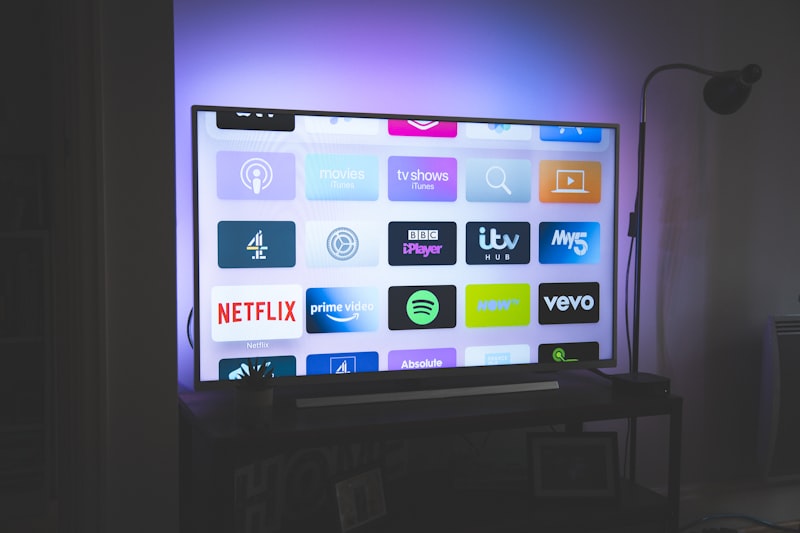
Once connected to the internet, your smart TV brings endless entertainment to your living room.
Why Connect Your Smart TV to the Internet
For Toronto seniors, an internet-connected TV provides endless entertainment and connection. According to recent surveys, over 60% of North York seniors use streaming services for everything from health and fitness videos to cooking shows and classic movies.
Connecting your TV means no more expensive cable bills. You can watch exactly what you want, when you want it. Many seniors also enjoy video calling family through their TVs, which is much easier than squinting at a phone screen.
North York Tech Help ensures the process is safe and straightforward. We take our time explaining each step so you never feel rushed or confused.
Step-by-Step: Connecting via Wi-Fi
Follow these steps to connect your smart TV to your home Wi-Fi network:
- Turn on your TV. Use your remote control to power up the television.
- Open the settings menu. Look for a gear icon or a button labeled Menu or Settings on your remote.
- Select Network or Internet. The exact wording varies by TV brand. Look for words like Network, Internet, or Wireless.
- Choose Wi-Fi and scan for networks. Your TV will search for available wireless networks in your home.
- Select your home network. Find your network name on the list and click on it.
- Enter your Wi-Fi password. Use your remote to type in the password carefully. Remember that passwords are case-sensitive.
- Confirm and test the connection. Once connected, try opening an app like YouTube or Netflix to verify everything is working.
- Update your TV software. After connecting, check for software updates in the settings menu to ensure you have the latest features and security patches.
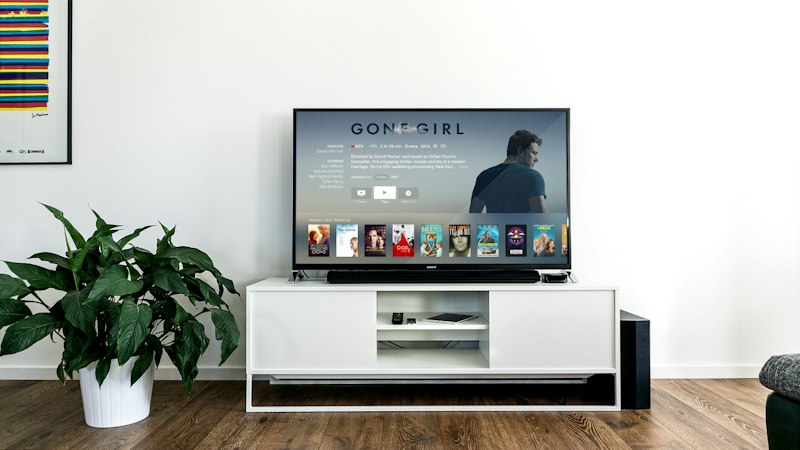
The network settings menu on most smart TVs is straightforward to navigate.
Using an Ethernet Cable Instead
If Wi-Fi seems too complicated or your wireless signal is weak, you can use an Ethernet cable. Simply plug one end of the cable into your TV and the other end into your internet router. This creates a direct, wired connection that is often more stable for streaming.
Many newer TVs automatically detect the Ethernet connection without any additional setup. If your TV asks you to choose between wired and wireless, select wired.
Tips for the Best Streaming Experience
- Place your router centrally. If using Wi-Fi, keep your router in a central location in your home for the strongest signal to your TV.
- Limit other device usage during streaming. If family members are streaming on multiple devices, your TV stream may buffer. Try to minimize other streaming when watching on your TV.
- Enable auto-updates. In your TV settings, turn on automatic app and firmware updates so you always have the latest version.
- Learn voice controls. Many smart TVs have voice remote controls that make searching for shows much easier than typing with a remote.
- Secure your accounts. When you sign up for Netflix or other services, use strong passwords. Write them down somewhere safe.
Restarting Your TV When Issues Arise
If your TV loses its internet connection or apps stop working, a simple restart often fixes the problem. Turn off your TV, unplug it from the power outlet, wait 30 seconds, and plug it back in. This clears temporary issues and refreshes the connection.
North York Tech Help has helped hundreds of Toronto seniors become confident smart TV users. Whether you want to stream your favorite shows, watch YouTube tutorials, or video call grandkids, we are here to make it happen.
Having Trouble Connecting Your Smart TV?
North York Tech Help offers in-home tech support for seniors. We will set up your smart TV, connect it to the internet, and show you how to use your favorite streaming apps with confidence.
$60/hour with satisfaction guaranteed
Call or Text: 289-203-4346Serving North York, Willowdale, Bayview Village, Don Mills & surrounding areas
Related Articles
- How North York Seniors Can Avoid Common Tech Scams
- How to Spot Tech Scams: Red Flags Every Senior Should Know
- Speed Up Your Slow Computer: Easy Fixes for Toronto Seniors
Anthony is a tech support specialist serving seniors in North York, Willowdale, and surrounding areas. He provides patient, in-home technology help including scam protection, computer security, and digital literacy. He holds a Bachelor of Commerce from TMU and certifications in AI Engineering from IBM and Google.